Pro Tips
Community
How to Build Mac Apps with AI
Feb 7, 2026
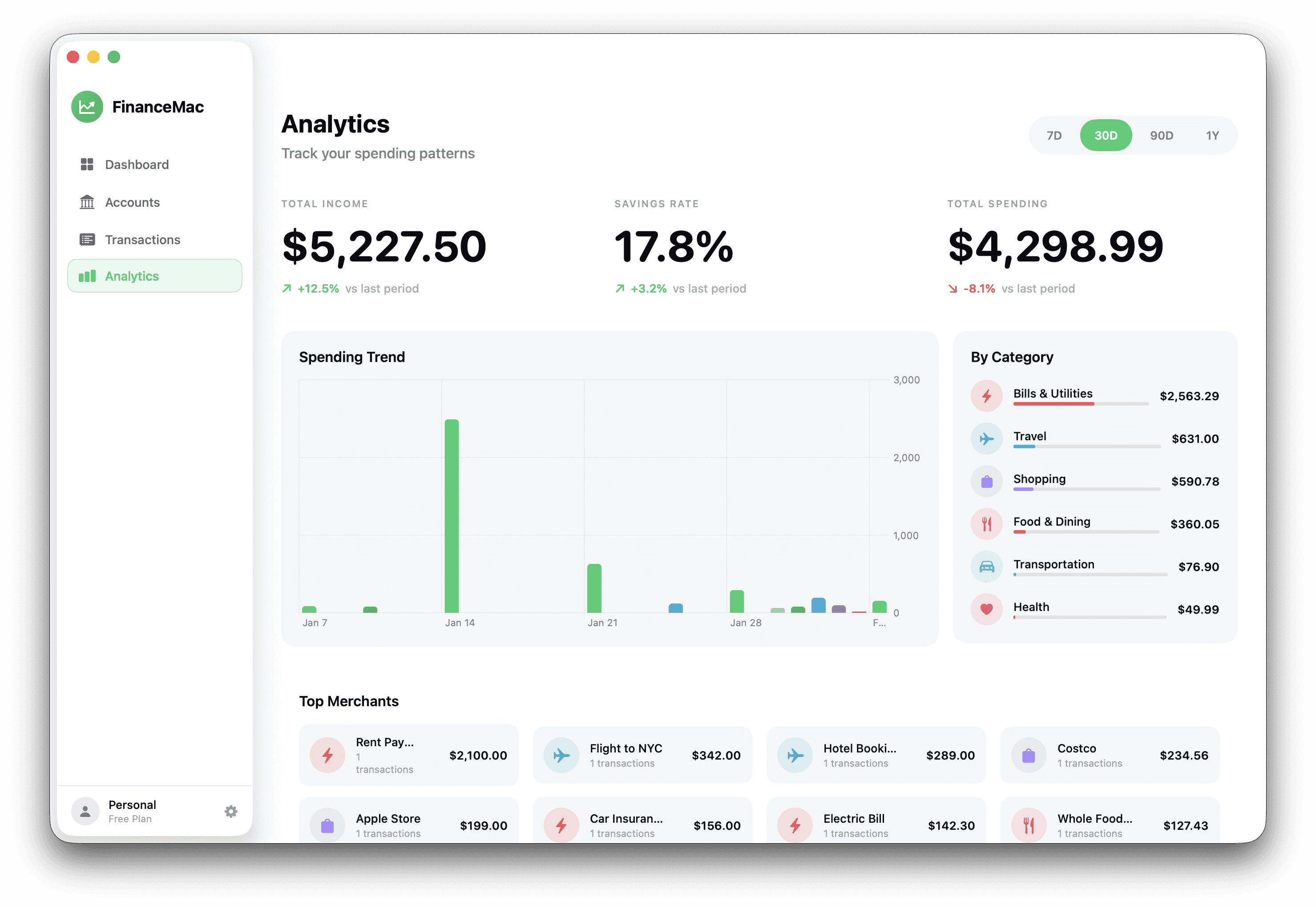
We just shipped Mac support in Nativeline 2.0. After building dozens of Mac apps internally and watching early users do the same, we've learned what works and what doesn't.
Here's how to get the best results.
Use Max Mode
This is the single biggest lever.
Max mode is powered by Opus 4.6. It thinks harder, plans better, and understands macOS frameworks at a deeper level than the standard mode.
Yes, it uses more credits. It's worth it.
Mac apps are more complex than iPhone apps. They have menus, multiple windows, toolbar configurations, keyboard shortcuts, and system-level integrations. Max mode handles this complexity better because it reasons through the architecture before writing code.
If you're building something simple, standard mode is fine. If you're building a real Mac app with real functionality, turn on Max mode. You'll spend less time fixing things later.
Start With the Core
Don't describe your entire app in one prompt.
Start with the foundation. What's the one thing your app does? Build that first. Get it running. Make sure it works the way you want.
Then layer on the next feature. Then the next.
Here's why this matters: Nativeline builds what you describe. If you describe ten features at once, you get ten features built in one pass — and if one of them isn't quite right, you're untangling it from everything else.
If you build incrementally, each piece is solid before you move on. Problems stay small. Fixes stay simple.
Example:
Bad prompt:
"Build me a note-taking app with folders, tags, markdown support, iCloud sync, a menu bar quick-capture feature, and keyboard shortcuts for everything."
Better approach:
"Build a note-taking app. I can create notes, edit them, and delete them. Notes persist locally."
Get that working. Tune the UI.
"Add folders. I can organize notes into folders and move notes between them."
Get that working. Tune it.
"Add markdown support to the note editor with live preview."
And so on.
You're not slowing down. You're building faster because you're not backtracking.
Be Specific About What You Want
Nativeline is a tool. It's a powerful tool, but it can't read your mind.
If you say "make the UI look good," you'll get something that looks good to the AI. It might not be what you pictured.
If you say "use a sidebar for navigation on the left, a list of items in the middle panel, and a detail view on the right, similar to Apple Mail," you'll get exactly that.
The more specific you are, the closer the output matches your vision.
This is especially true for:
Layout and structure. Describe the panels, the navigation, where things go.
Interactions. What happens when I click this? What happens when I drag that?
Visual style. Dark mode? Light mode? Minimal? Dense with information?
You're the designer. Nativeline is the builder. Tell it what to build.
System Integrations Need Extra Detail
Mac apps often hook into the operating system. Menu bar apps. File system access. Notifications. Shortcuts. Spotlight integration.
When you're adding these, don't assume Nativeline knows how you want it to work. Spell it out.
Example:
Vague:
"Add a menu bar icon for the app."
Specific:
"Add a menu bar icon. When clicked, it shows a dropdown with my three most recent notes and a 'New Note' button. Clicking a note opens the main window with that note selected. Clicking 'New Note' creates a new note and opens the main window."
The vague prompt will give you a menu bar icon. The specific prompt will give you the menu bar experience you actually want.
Same applies for:
Keyboard shortcuts. Which shortcuts? What do they do? Do they work when the app is in the background?
File access. Where does the app read from? Where does it save to? What formats?
Integrations. How does it connect? What triggers what?
If it touches the system, describe the behavior explicitly.
You're Guiding, Not Ordering
The best way to think about Nativeline: you're guiding a fast, capable builder who needs clear direction.
It won't push back. It won't ask clarifying questions. It'll build what you describe.
That means:
If something isn't right, tell it what's wrong and how to fix it.
If you're not sure what you want, build a rough version first, then refine.
If the AI made a choice you don't like, override it. Be direct.
This is a conversation. You prompt, it builds, you review, you refine. The more loops you run, the closer you get to what you want.
Putting It Together
Here's the workflow that works:
Turn on Max mode for Mac apps.
Start with the core - one feature, working end-to-end.
Be specific about layout, interactions, and behavior.
Build incrementally - add features one at a time.
Spell out system integrations - don't assume, describe.
Iterate - review, refine, repeat.
Mac apps are more complex than mobile apps. But with the right approach, Nativeline handles that complexity. You just need to guide it.
Go build something.
More from the guide
General
Apr 7, 2026
Best AI iOS App Builders in 2026 (Honest Rankings)
You can now switch between Friendly, Formal, and Bold tones with a single click inside the prompt editor.
General
Apr 7, 2026
Nativeline vs Vibecode in 2026: Native Swift vs React Native
You can now switch between Friendly, Formal, and Bold tones with a single click inside the prompt editor.
General
Apr 7, 2026
Nativeline vs Superapp in 2026: Same Language, Different Philosophy
You can now switch between Friendly, Formal, and Bold tones with a single click inside the prompt editor.