General
Pro Tips
How to Vibe Code a Native iPhone App (Without Writing a Single Line of Swift)
Feb 14, 2026
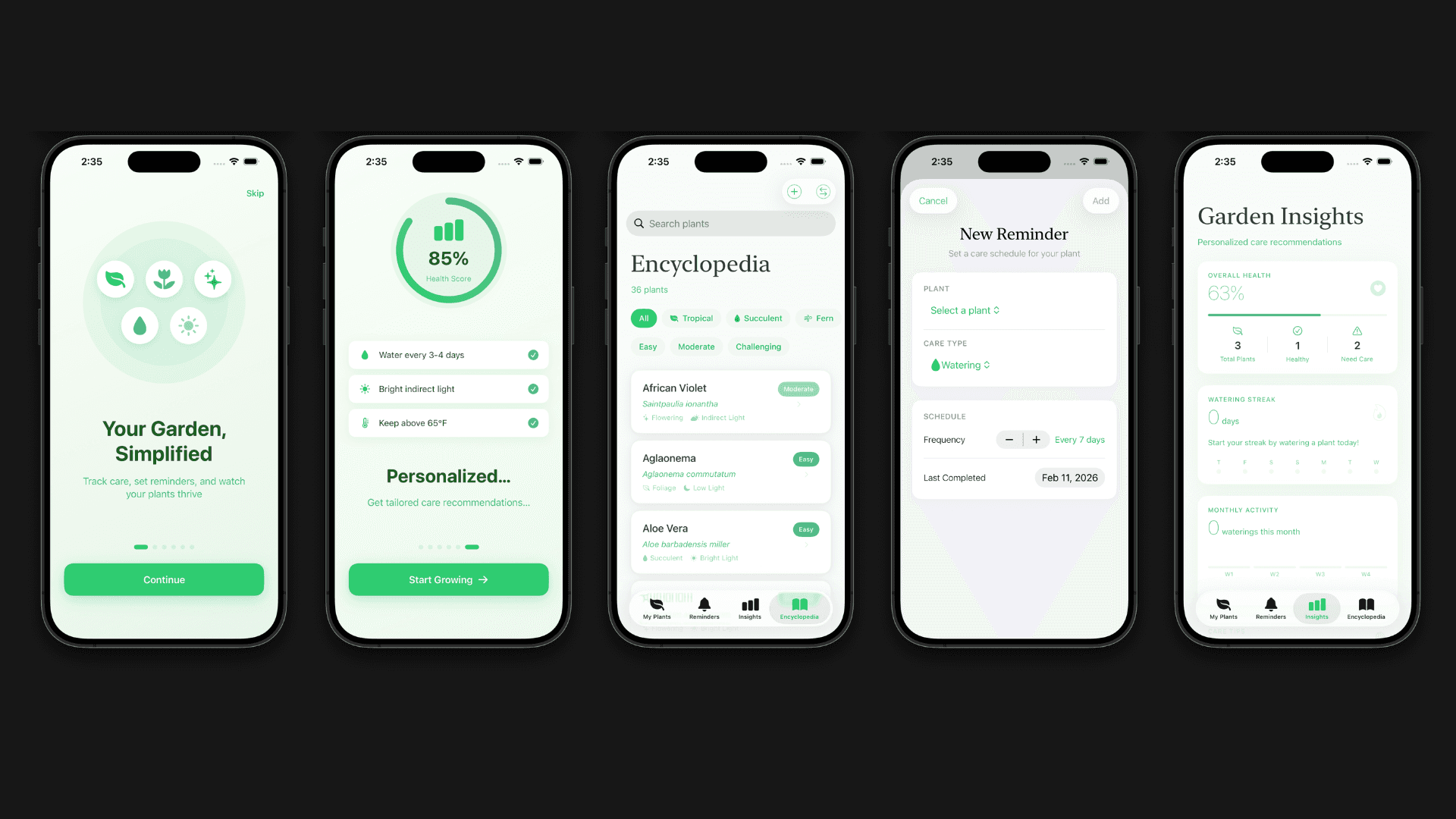
Vibe coding changed everything. What started as Andrej Karpathy describing the feeling of letting AI write code for you has become an entire movement — people shipping real apps to the App Store who've never opened a Swift textbook.
But here's the thing most guides won't tell you: most vibe coding tools don't build native apps. They build web wrappers. React Native shells. Cross-platform compromises that look like apps but don't feel like them.
If you've ever downloaded an app that felt slightly off — sluggish scrolling, weird animations, notifications that don't work right — you've used a wrapped app. Users can tell the difference. Apple can tell the difference.
This guide is about doing it the right way. Building a real native iPhone app with real Swift code, without learning Swift yourself.
What Vibe Coding Actually Means in 2026
The term comes from a simple idea: describe what you want, and let AI handle the code. You focus on the product. The AI focuses on the implementation.
In practice, most people's vibe coding workflow for iOS looks something like this: open Cursor or Claude Code, write a prompt, get some Swift code, paste it into Xcode, hit build, get twelve errors, paste those errors back into the AI, get more code, hit build again, get different errors, and repeat until something works or you give up.
It works. People have shipped apps this way. But it's slow, frustrating, and you spend more time debugging toolchain issues than thinking about your app.
The real opportunity with vibe coding is skipping all of that friction — describing your app and getting a working native build without managing Xcode projects, provisioning profiles, or simulator configurations yourself.
Why Native Matters (and Why Most Tools Skip It)
When someone says they want to build an iPhone app, they usually mean a real iPhone app. One that feels like it belongs on the phone. Smooth 60fps animations. Proper haptic feedback. System-level integrations like widgets, notifications, Shortcuts, and HealthKit.
Native Swift apps get all of this for free because they speak Apple's language directly. Web wrappers and cross-platform tools have to translate everything through a middle layer, and that translation always costs something — performance, battery life, or access to the latest iOS features.
Most AI app builders skip native because it's harder. Generating React Native or HTML is easier for the model. But easier for the AI doesn't mean better for your users.
Here's what you lose when your "iPhone app" is actually a web wrapper:
Performance. Native Swift apps compile to machine code. They run faster, use less memory, and drain less battery. Your users notice.
Design quality. SwiftUI gives you Apple's design system built in. The blur effects, the spring animations, the navigation patterns that iPhone users expect — these come naturally in Swift. In a wrapper, you're faking them.
Platform access. Want to build a widget? Use Live Activities? Integrate with Siri or Shortcuts? Access the camera with custom processing? These features require native code. Wrappers can sometimes bridge to them, but it's fragile and limited.
App Store approval. Apple reviews apps carefully. Native apps built with SwiftUI follow Apple's guidelines naturally. Wrapped apps often need extra work to pass review, and some features are only available to native apps.
How to Build a Native iPhone App Without Coding
There are a few paths, and they each have tradeoffs.
Path 1: AI coding assistants + Xcode. Tools like Cursor, Claude Code, or GitHub Copilot can generate Swift code that you paste into Xcode. This works, but you need Xcode set up, you need to manage your project structure, and you need to debug build failures yourself. It's the most flexible option but also the most technical. Good if you have some development experience and want full control.
Path 2: No-code platforms. Tools like Adalo, FlutterFlow, or Thunkable let you drag and drop your way to an app. The tradeoff is that most of them don't output real native code — they generate web views or cross-platform builds. You're also locked into their platform and limited by their component library.
Path 3: AI-native app builders that output Swift. This is the newest category. You describe your app, the AI generates real Swift/SwiftUI code, and you get a full Xcode project you own. The tool handles the project setup, file structure, and build configuration. You focus on what your app should do.
Nativeline falls into this third category. You open the app, choose iPhone (or iPad, or Mac), describe what you want to build, and it generates a working native app in real time. The code is real Swift. The project is a real Xcode project. You can open it in Xcode, modify it, or ship it directly to TestFlight with one click.
A Real Workflow: From Idea to TestFlight
Here's what vibe coding a native iPhone app actually looks like when you're not fighting tools:
Step 1: Start with the core idea, not the whole app. Don't try to describe your entire app in one prompt. Start with the main screen and the primary function. "I want a recipe app that lets me save recipes with photos and search by ingredient" is a good starting point. You can add features iteratively.
Step 2: Be specific about what you want to see. "Make it look good" is vague. "Use a clean white background with a tab bar at the bottom, a search bar at the top of the main screen, and recipe cards in a grid layout with rounded corners and shadows" gives the AI something concrete to build.
Step 3: Build, review, refine. Look at what the AI built. Does the navigation feel right? Is the layout what you imagined? Tell it what to change. "Move the save button to the top right of the navigation bar" or "Make the recipe cards bigger and show the cooking time on each card." This is the vibe coding loop — prompt, build, review, refine.
Step 4: Test on your device. Use the simulator or deploy to TestFlight to try it on your actual iPhone. This is where you catch things that look fine on screen but feel wrong in your hand. Buttons too small to tap comfortably. Text too small to read. Scrolling that doesn't feel right.
Step 5: Ship it. When you're happy, push to TestFlight for beta testing or submit to the App Store. With Nativeline, this is a one-click process — connect your Apple Developer account and deploy.
Tips for Better Results
Start small, then expand. Get one screen working perfectly before adding the next. This gives the AI better context and produces cleaner code.
Describe interactions, not just layouts. "When I tap a recipe, it should slide in from the right with the photo at the top taking up the full width" is more useful than "add a detail page."
Use reference apps. "I want the navigation to work like the Apple Notes app" or "The card layout should look similar to the App Store's Today tab" gives the AI a clear target.
Don't skip testing on a real device. Simulators are helpful but they don't give you the full picture. Haptics, gesture feel, and real-world performance only show up on actual hardware.
Iterate in small steps. Change one thing at a time. If you ask for five changes at once and something breaks, you don't know which change caused it.
The Bottom Line
Vibe coding a native iPhone app is no longer a novelty — people are doing it every day and shipping real apps to the App Store. The key is choosing tools that output actual native code, not web wrappers pretending to be apps.
You don't need to learn Swift. You don't need to understand Xcode's provisioning system. You don't need a computer science degree.
You need a clear idea of what you want to build, the patience to iterate on it, and a tool that turns your descriptions into real native code.
The best part? You own everything. The code, the project, the app. No lock-in. It's your app, running your code, on your users' phones.
That's what vibe coding was always supposed to be.
Ready to build your first native iPhone app? Try Nativeline free — no credit card required.
More from the guide
General
Apr 7, 2026
Best AI iOS App Builders in 2026 (Honest Rankings)
You can now switch between Friendly, Formal, and Bold tones with a single click inside the prompt editor.
General
Apr 7, 2026
Nativeline vs Vibecode in 2026: Native Swift vs React Native
You can now switch between Friendly, Formal, and Bold tones with a single click inside the prompt editor.
General
Apr 7, 2026
Nativeline vs Superapp in 2026: Same Language, Different Philosophy
You can now switch between Friendly, Formal, and Bold tones with a single click inside the prompt editor.